Home / Image to video / Inputs

Image to video · input workflow

One photo or a storyboard? Start with the shot you need.

A single-image animation asks one source image to carry the whole clip. A storyboard gives each beat its own source frame. Pick the input workflow before you write a motion prompt or spend a generation credit.

Short answer

Use one image when the clip is one subject in one setting. Use a storyboard when the viewer must see a new angle, a new place, or a deliberate sequence of events.

Choose my workflow
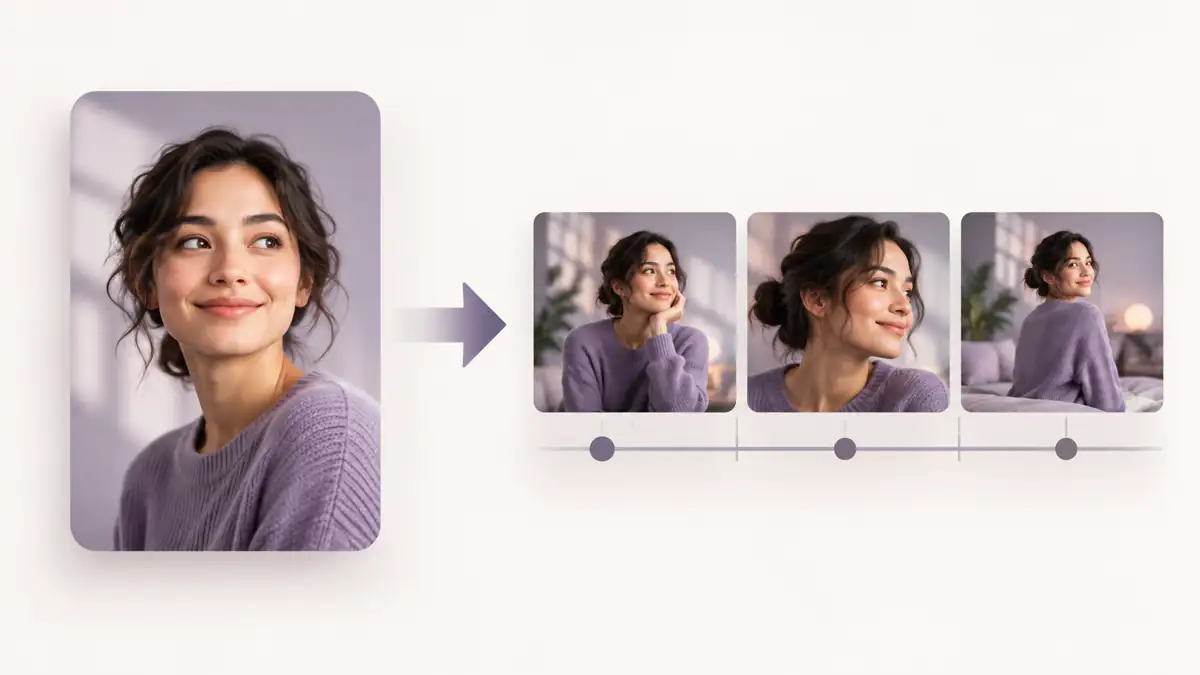
One portrait source image compared with a three-frame storyboard
One still can animate a moment; several stills can plan a sequence.

A two-minute input check

Describe the change the viewer needs to see

Choose the closest statement. This does not predict a specific service’s result; it helps you decide which source material to prepare.

Prepare one strong source image. Keep the subject, background, and intended motion in the same composition. A one-image brief is usually the clearer starting point for one contained moment.

The decision behind the prompt

One still photo on one side and a short ordered stack of three distinct frames on the other
One source frame starts a single visible scene; an ordered frame set supplies separate composition decisions.

The two inputs solve different jobs

Single-image animation

One frame establishes the world

Start here for an avatar, old photo, product close-up, or a short moment where the setting should stay recognizably the same.

  • Prepare one image with the subject already framed.
  • Write motion that can happen inside that composition: glance, breath, camera push, cloth movement, or light change.
  • Review the output for identity, edges, and background continuity.
Multi-image storyboard

Each frame establishes a beat

Start here when the clip needs the viewer to understand a transition: wide shot to close-up, product detail to use case, or one event followed by another.

  • Prepare one reference image for each indispensable beat.
  • Give every frame one job: establish, change, reveal, or resolve.
  • Check that recurring people, objects, light, and direction agree across the sequence.
The missing-evidence test

Add a frame only when it proves something the last frame cannot

Finish this sentence before you make the prompt: “The viewer must see ___.” If the blank is already visible inside the first composition, keep one image and direct the motion. If it is a new angle, a changed state, or the result of an earlier action, make that proof a separate source frame.

01 · Test the claim

Point to the evidence

Ask whether a crop, a camera push, or a small movement can reveal the fact without leaving the original view. If yes, the first image is still doing its job.

02 · Name the missing fact

Do not add decorative shots

When the first image cannot prove the fact, name the exact thing the next frame must establish: a different side, a changed object, or a consequence.

03 · Give the new card one job

Keep the sequence accountable

Every added frame should answer one visible question. If it does not add proof, remove it and keep the input set smaller.

A practical production rule

A photo card with a small missing-frame gap beside a complete three-frame sequence
When a later beat needs a different composition, it belongs in another source frame rather than in a longer prompt.

Do not make a prompt carry missing shots

A prompt can direct motion, but it is a weak substitute for source material the audience must actually see. Build the minimum input set first, then write a prompt that only asks for change within that set.

01 · Name the visible change

Moment or sequence?

If the outcome is a single continuous moment, choose one image. If it relies on a cut, angle change, or ordered action, list the beats and prepare a frame for each.

02 · Test continuity before motion

Match what must recur

For a storyboard, compare the subject, clothing, product state, lighting direction, and camera side before rendering. This prevents a later frame from quietly changing the story.

03 · Render the smallest test

Test one uncertainty

Use a short test to answer one question, such as whether a face holds or whether a product label stays readable. Change one input variable at a time.

Why this distinction exists

A historical one-photo limit is still a useful planning boundary

A 2021 TokkingHeads product page described a one-photo minimum for its animation workflow and routed text, voice, and video into animated portrait outcomes. That historical input boundary is useful because it separates a one-photo character or portrait task from a multi-shot video plan.

This page does not treat a 2021 product description as a claim about current image-to-video services. It uses the archived constraint for a narrower lesson: when your plan only contains one photo, define the clip as a contained animation. When the story needs several views, prepare a storyboard instead of hoping a single image will imply every missing beat.

Source: TokkingHeads archived product page, 2021. The historical facts are rewritten and attributed; archived copy is not reproduced.

Limit: A storyboard is not a guarantee that a chosen generation service accepts multiple references or preserves continuity. Check that service’s current input controls and terms before uploading or paying for a render.

Questions before you generate

One image or a storyboard: quick answers

Can I make a multi-shot video from one image?

You can ask a generation service for more than one change, but a single source frame cannot show every viewpoint with the same control as separate reference frames. If a later shot matters to the story, prepare it.

What counts as a storyboard frame?

It is a source image assigned to one visible beat, not a decorative mood board. A useful frame tells you what the viewer must see at that point in the sequence.

Should I use a storyboard for every short video?

No. A contained one-subject moment can be clearer and faster with one well-composed image. Add frames only when the viewer needs a meaningful new view or ordered event.

Does this page generate or upload video?

No. It is a planning guide. It does not receive images, call a video model, or publish a clip.