Home / Image to video / Frame planning
Image to video · framing
Choose the frame before you generate.
A crop can remove the subject, product label, or empty space your motion prompt depends on. Preview the same source image as portrait, square, and landscape first; then send the frame that fits the finished clip.
Short answer
Preview my image
Pick the destination frame first. If one story needs several shapes, check each crop before rendering and make a separate source version when the subject no longer fits.

Local crop preview
Check three frames from one photo
Choose a source image, then adjust where the crop sits. This page previews and exports crops in your browser; the file is not uploaded to Photo2Reel.
Local preview · no upload
Choose an image to compare the three crops.
Square 1:1
Landscape 16:9
1. Name the delivery
Write down where this clip will appear and which frame shape that destination expects. Confirm exact export settings in the generation service you use.
2. Check the subject and edges
Look for faces, hands, labels, and movement space near the crop boundary. A static preview reveals what the frame would cut away before a render.
3. Reframe before adding motion
If a needed detail falls outside one crop, adjust the crop or prepare a separate source image. Then write the motion direction for that composition.
These presets are comparison frames, not a promise that every generation service accepts every shape. Check the selected service’s current input and output controls before spending a render credit.
A small step with a long history
Treat framing as part of the production plan
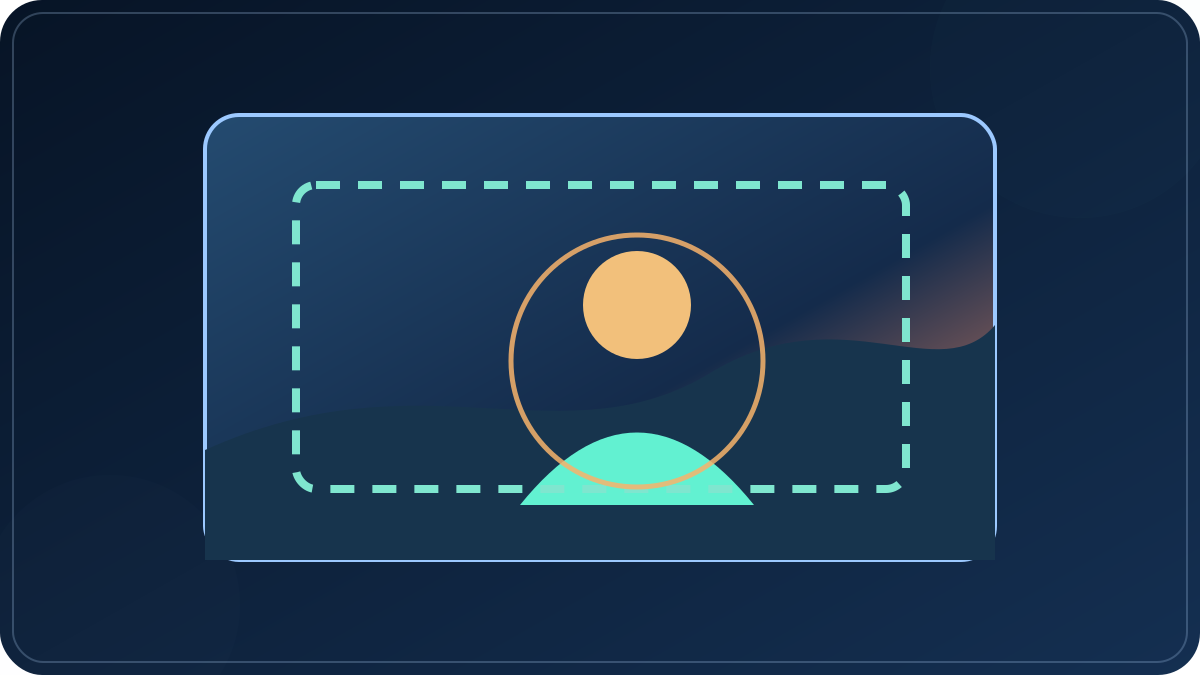
A 2019 archived Wibbitz product page described preparing one story in square, vertical, and horizontal versions. That is a useful historical workflow detail: decide which frames the story needs while planning, instead of assuming one crop will suit every destination.
The archive is evidence about that product’s 2019 workflow, not a statement about today’s video services. This planner turns the idea into a practical check: compare the crop, move its focal position, and save a frame only after the important subject still fits.
Source: Wibbitz archived product page, 2019. The description above is rewritten and attributed; no archived copy is reproduced.
Questions before a render
Frame planning questions
Should I crop before or after image-to-video generation?
Preview the intended frame before generation so the reference composition and motion direction match. If the generated service has its own aspect-ratio control, verify how it treats the input image; this page does not predict that service’s behavior.
Does changing the crop create a new video?
No. This browser tool creates still-image crops only. It does not generate motion, upload a file, or publish a clip.
Can one image work for every frame shape?
Sometimes. Compare the subject, important edges, and room for motion in each preview. If a required detail disappears in one frame, make a separate source composition for that version.
Does this upload my photo?
No. The selected file is decoded in this browser tab for preview and crop export. It is not sent to Photo2Reel.