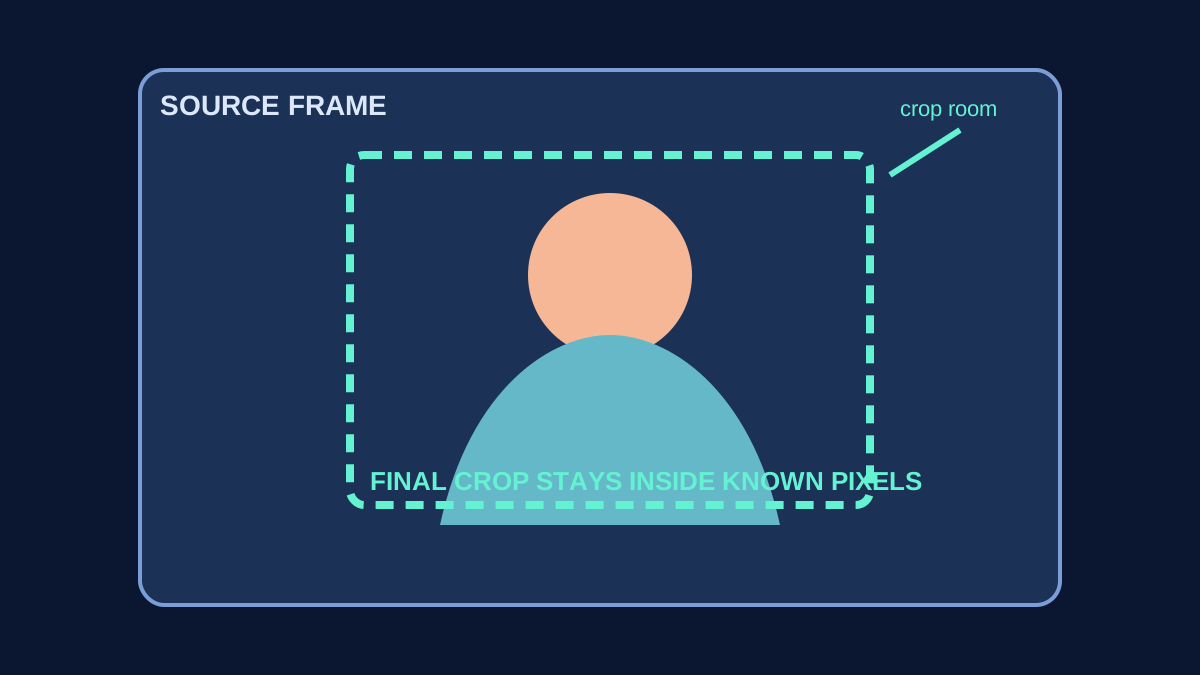
Use a final box, not a vague request for “more motion”
Start from the actual image dimensions. Put a box where the last frame of the move should land. The box is not a promise of a particular model result; it is a constraint you can inspect before generation. If the box cuts through a face, label, hand, skyline, or intended background cue, the shot has no safe crop room for that direction.
- Name the protected thing. Pick the detail that must stay readable: an eye line, product label, hand, horizon, or a person’s full silhouette.
- Draw the ending crop. Make the final box smaller only until the protected thing still has breathing room on every important side.
- Check the approach path. Trace the move from the source frame to the final box. Any edge that must reveal new scenery is an invention risk.
- Choose the smaller job. Reduce the push-in, change the direction, or use a roomier source image before writing a more complicated prompt.
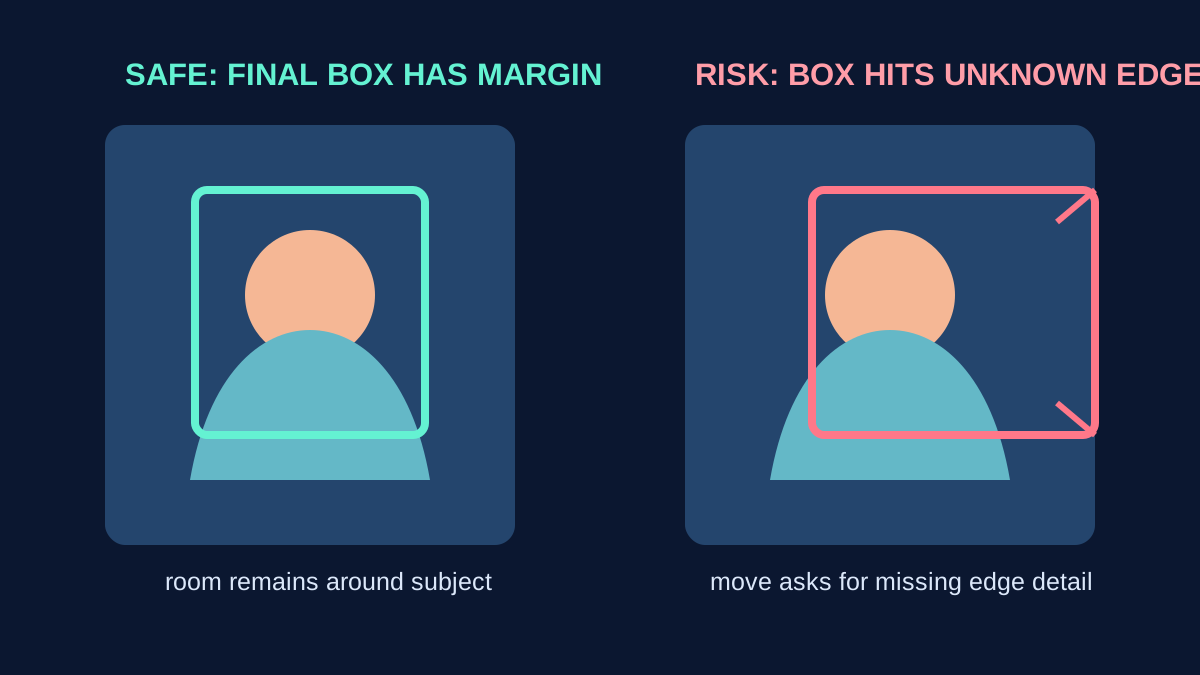
Choose the movement from the available room
| Source condition | Useful camera job | What to protect | Do not ask for |
|---|---|---|---|
| Subject has space on all sides | A modest centered push-in | Full head, label, or silhouette | A fast zoom that consumes all margin |
| Space exists only above and below | A gentle vertical settle or a narrow push-in | Top and bottom edge detail | A sideways move that needs new background |
| One side is tightly cropped | A still camera with subject motion | The tight edge and object shape | A pan toward the tight side |
| Background is the protected detail | A small subject action | Horizon, pattern, or architectural lines | A move that exposes an unpictured edge |
Separate crop room from prompt language
Prompt wording can describe a camera job, but it cannot supply a reliable map of pixels outside the source image. When a render invents a shoulder, changes a product boundary, or turns a clean horizon into a new scene, first check whether the requested path had enough source room. Use the frame-crop guide to select a stable input frame, then use the render review sheet to judge the result by visible evidence.
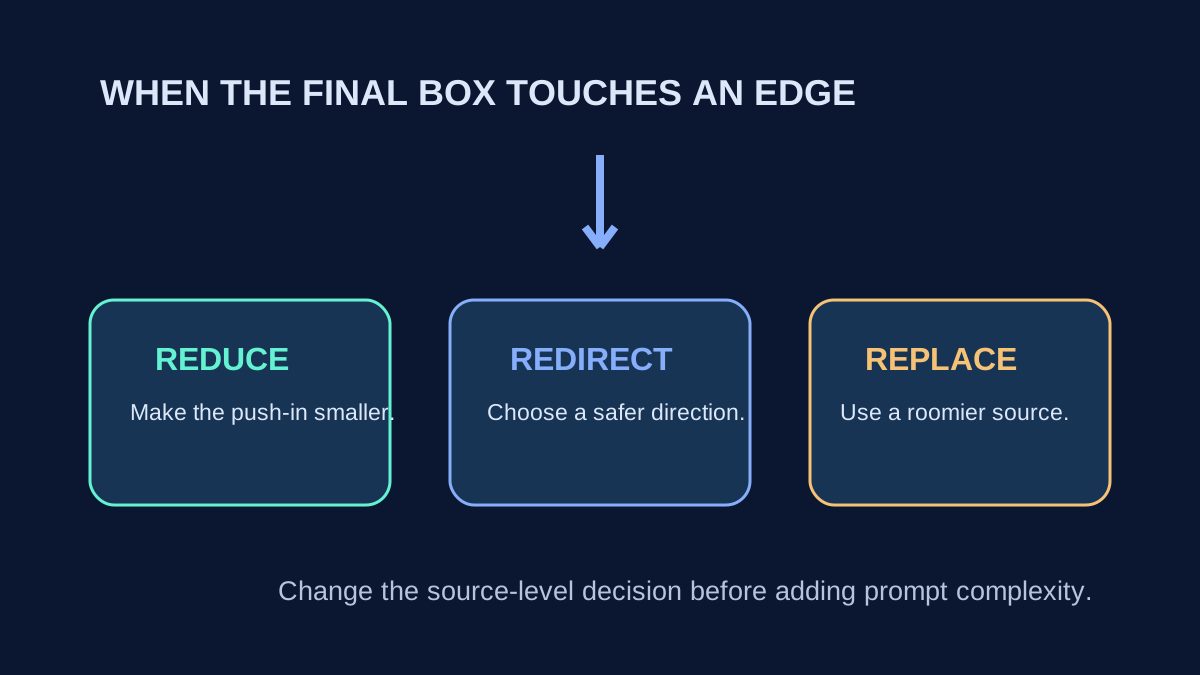
A short preflight question
Ask: “Can I draw the final frame completely inside what I can already see?” If yes, the move has a clear geometric job. If no, the source frame—not the lack of prompt detail—is the first thing to change. For a clean comparison afterward, change only one variable in the one-change test.